 Folding cartons
Straight tuck-end box
carton.tuckend.straightView template  JetDieline
FROM YOUR PRODUCT TO PACKAGING THAT FITS
Enter your dimensions. Design your packaging. Prepare the files for your printer.
01 START WITH THE RIGHT SHAPE
Choose a box, shipping carton, or belly band. Enter your dimensions: the cut and fold lines adjust. When your product grows, change the dimensions instead of the entire design.

Templates
Explore every packaging shape with its dieline, construction and practical guidance for your product.
Folding cartonscarton.tuckend.straightView template  Corrugated shipping boxes
corrugated.mailerView template  Folding cartons
carton.crashlockView template  Special carton shapes
carton.pillowView template  Food and hospitality
carton.cakeView template  Rigid boxes
rigid.drawer.trayView template TRY IT WITH YOUR DIMENSIONS
How big should your packaging be? Adjust the dimensions and switch between the flat design and the folded box.
YOUR DIMENSIONS
In JetDieline, you can also enter your product dimensions and a little clearance to calculate the right box size.
02 YOUR DESIGN ON YOUR PACKAGING
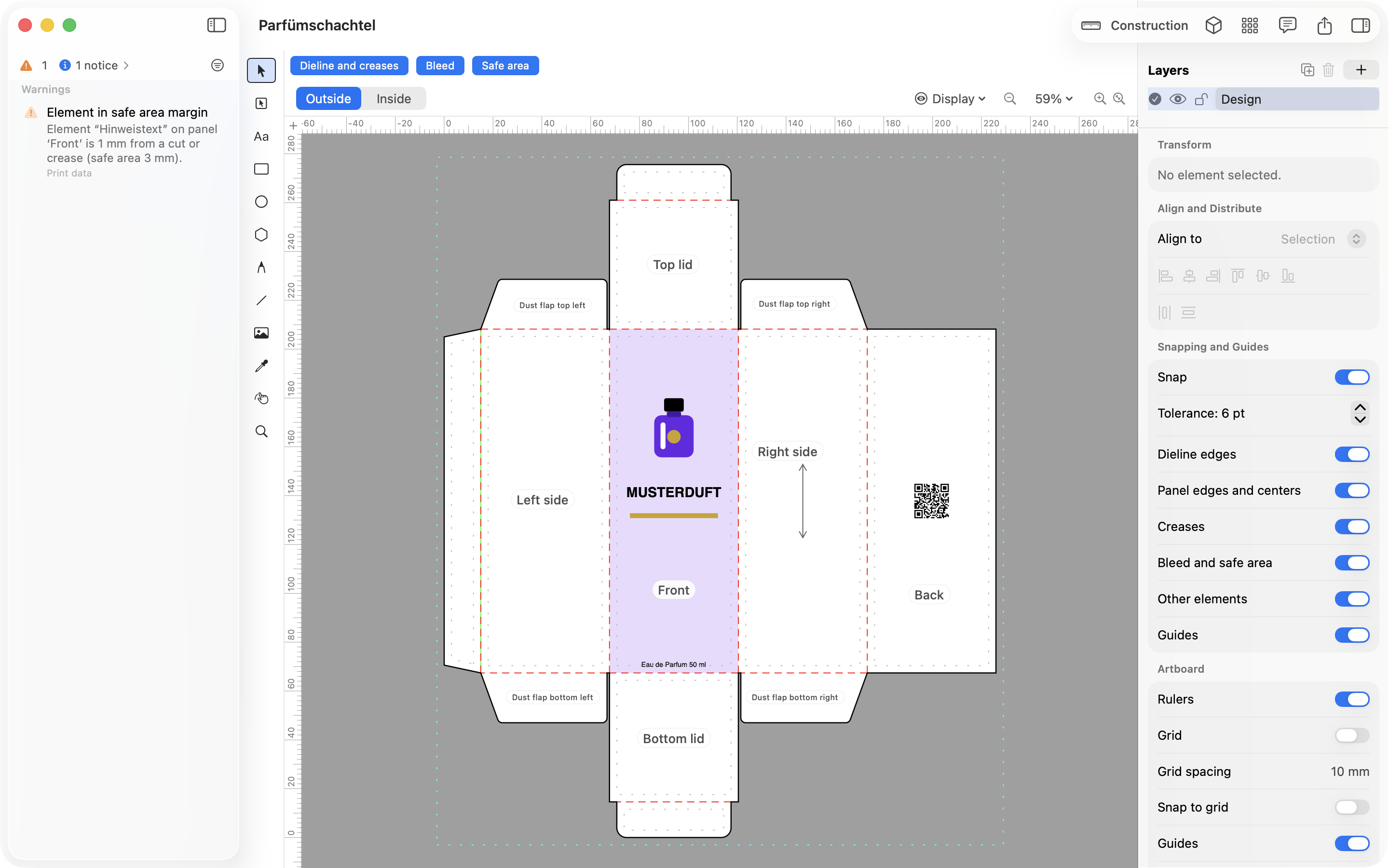
Place your logo, text, and images directly on the packaging panels. See where cuts and folds will be, and where your design needs space.
View the folded box with your design in 3D. Create images for your shop or a rotatable view that lets customers assess your design.
Place logos, text, and images directly on the panels.
Edit elements separately and arrange them neatly.
Look at the folded packaging with your design.
03 PREPARE FOR YOUR PRINTER
Text too close to the edge? An image without enough bleed for cutting? JetDieline explains the warning and points to the affected area. Then assemble the files for your printer.

Output your design and the cut and fold lines as separate PDF files, or together for your printer.
Share the cutting drawing as SVG or DXF, for example for the next prepress step.
A report records dimensions and checks so your printer can understand the design.
Features
Nine areas cover the journey from the first idea to handing over to the printer. Each page explains what the app does and where its limits lie.
Find the right packaging format and adapt it to your product
Design the artwork directly on the real dieline
Spot problems before you pass on files
See and show the pack folded
Files your printer can trace
Create one pack in several sizes
See how many blanks fit on one sheet
Use your printer's dieline as the basis
Create QR codes and GS1 barcodes directly on the pack
GOOD TO KNOW
Have a specific question about your packaging or the app?
Write to usYou can start with a template. Choose a folding carton or shipping box, for example, and enter the dimensions you need. JetDieline adjusts the cut and fold lines.
Yes. Place images and finished artwork, or edit text and shapes directly in the app. You can also import a cutting drawing from your printer as a reference.
Choose the files you need: your artwork, cut and fold lines, a preview, and a report with dimensions and checks. Agree the final print approval with your printer.
Create variants with different dimensions for a product range and share the design across them. Check and export each size separately.
The app works locally on your Mac. You do not need an account or have to upload your projects to a cloud.
JetDieline is designed for Macs with macOS 15 or later.
The release is being prepared. The exact date, distribution channel, and pricing have not been decided yet. For questions about the app, contact us at info@jetdieline.com.
YOUR NEXT PACKAGING PROJECT
Find the right size for your product.
Try it with your own dimensions.